Quick Start
Complete these steps in order. Use the Signoff Studio Starter Guide collection — the same suite we run against httpbingo for product demos.
Before you begin
- Install Signoff Studio.
- Download:
1. Import the Starter Guide
Objective: Load the demo collection into Signoff Studio.
- Click Import (or choose Import Existing Project on Welcome).
- Stay on the Collections tab.
- Click Choose collection JSON and select
.signoff-studio-starter.signoff.json
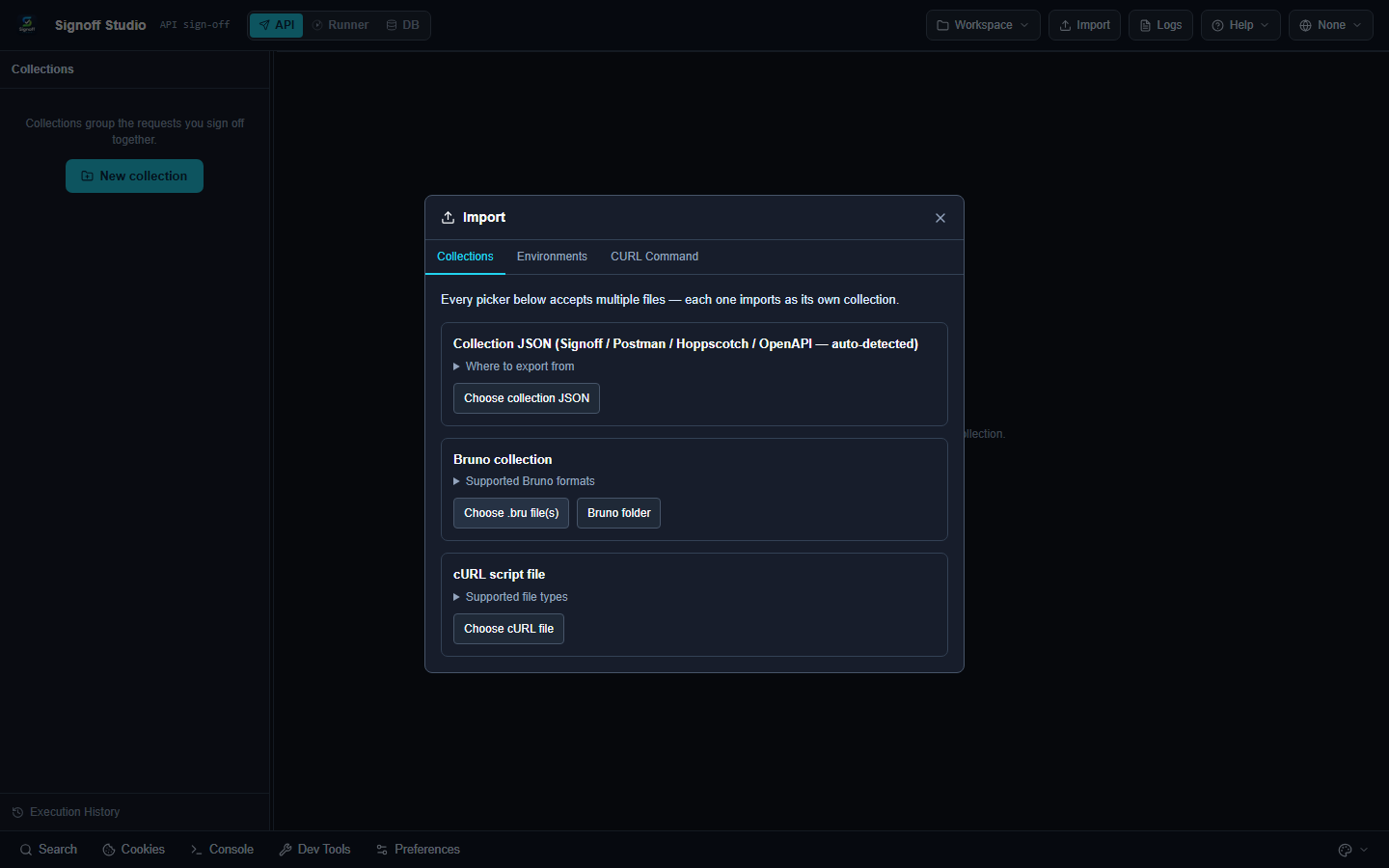
- Click Import again → Environments.
- Import
.signoff-studio-starter.httpbingo.signoff.env.json
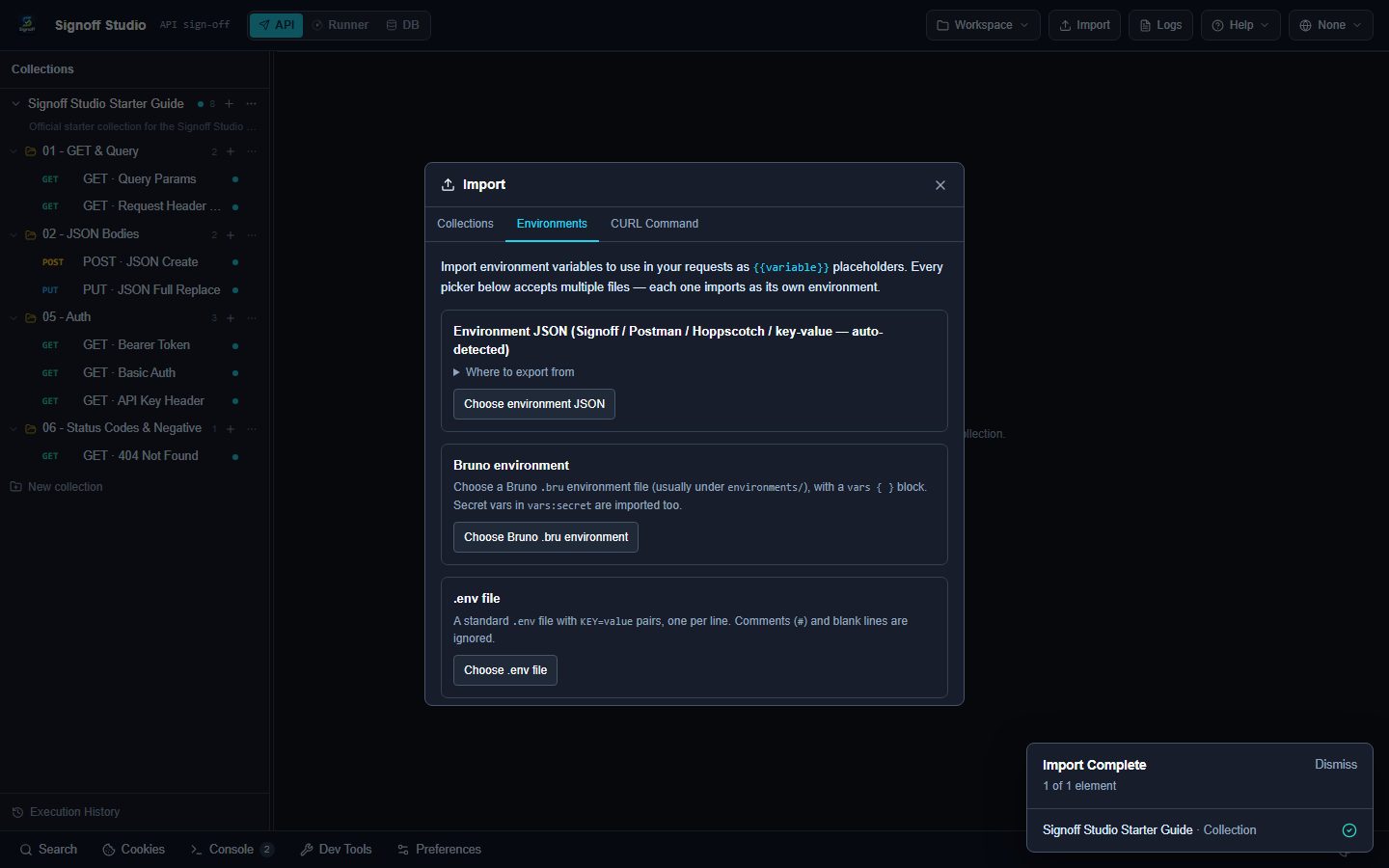
Success criteria
- Sidebar shows Signoff Studio Starter Guide with folders
,01
,02
, and05
.06 - Environment httpbingo appears in the top-bar switcher.
2. Select the environment
Objective: Resolve
{{baseUrl}}https://httpbingo.org- Open the environment switcher (globe).
- Select httpbingo.
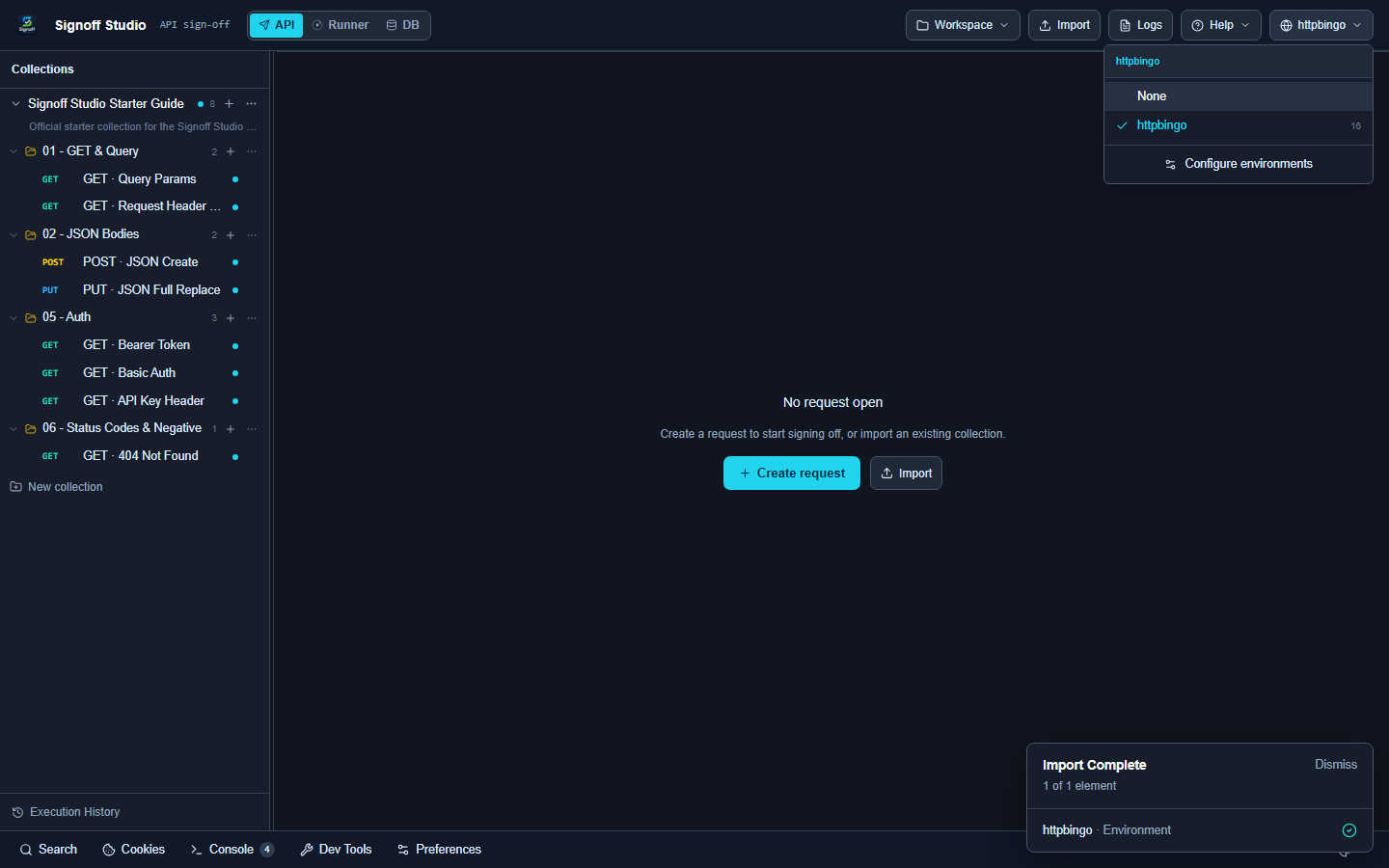
Success criteria
- Top bar shows httpbingo (not None).
3. Send your first request
Objective: Execute
GET · Query Params- In the sidebar, expand 01 - GET & Query.
- Open GET · Query Params.
- Confirm the URL is
.{{baseUrl}}/get?product=signoff&suite={{suiteName}}&page=1 - Click Send (or press Ctrl+Enter).
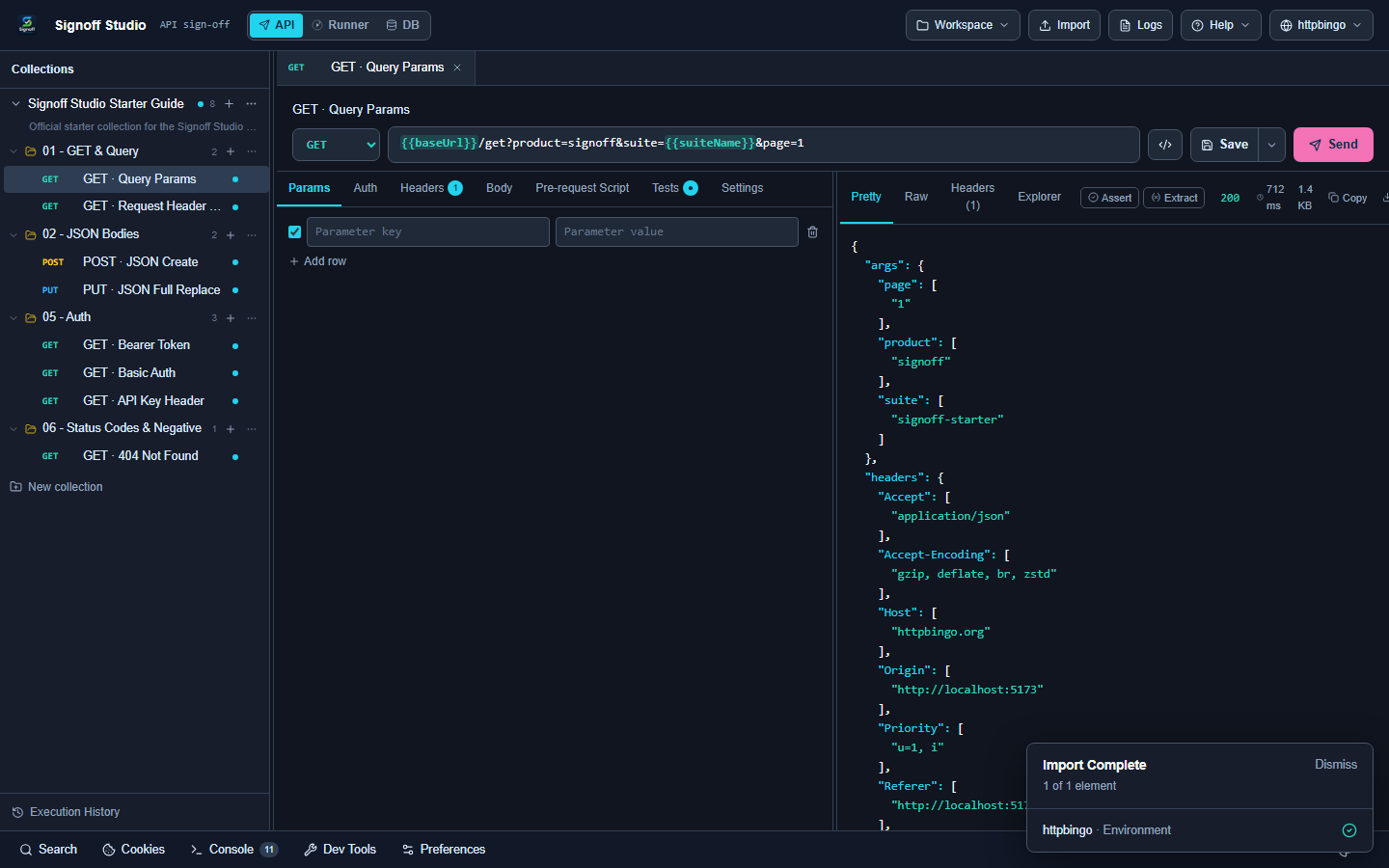
Success criteria
- Status is 200.
- Pretty JSON shows
=args.product
andsignoff
=args.suite
(variable resolved).signoff-starter
4. Send JSON
Objective: POST a JSON body.
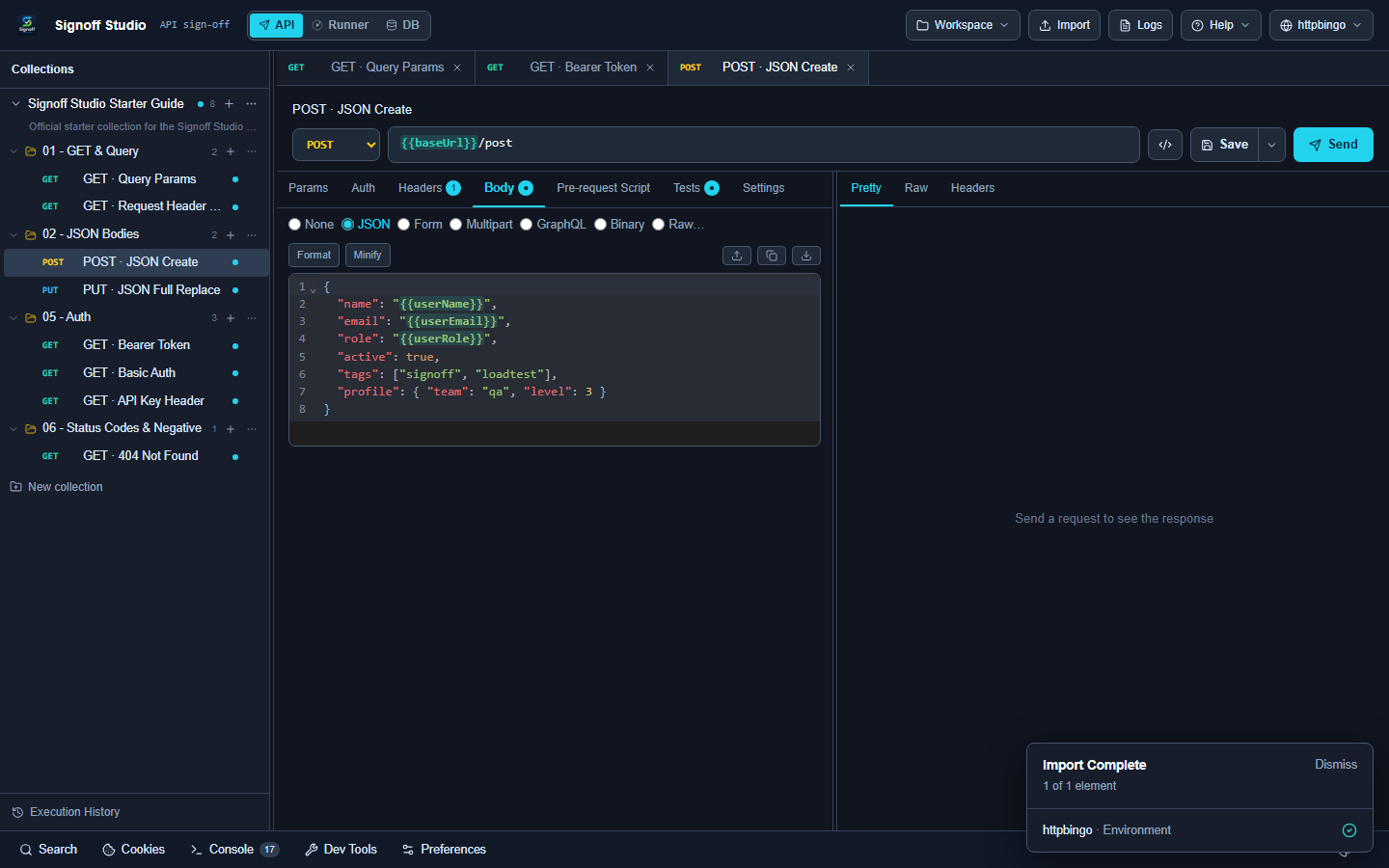
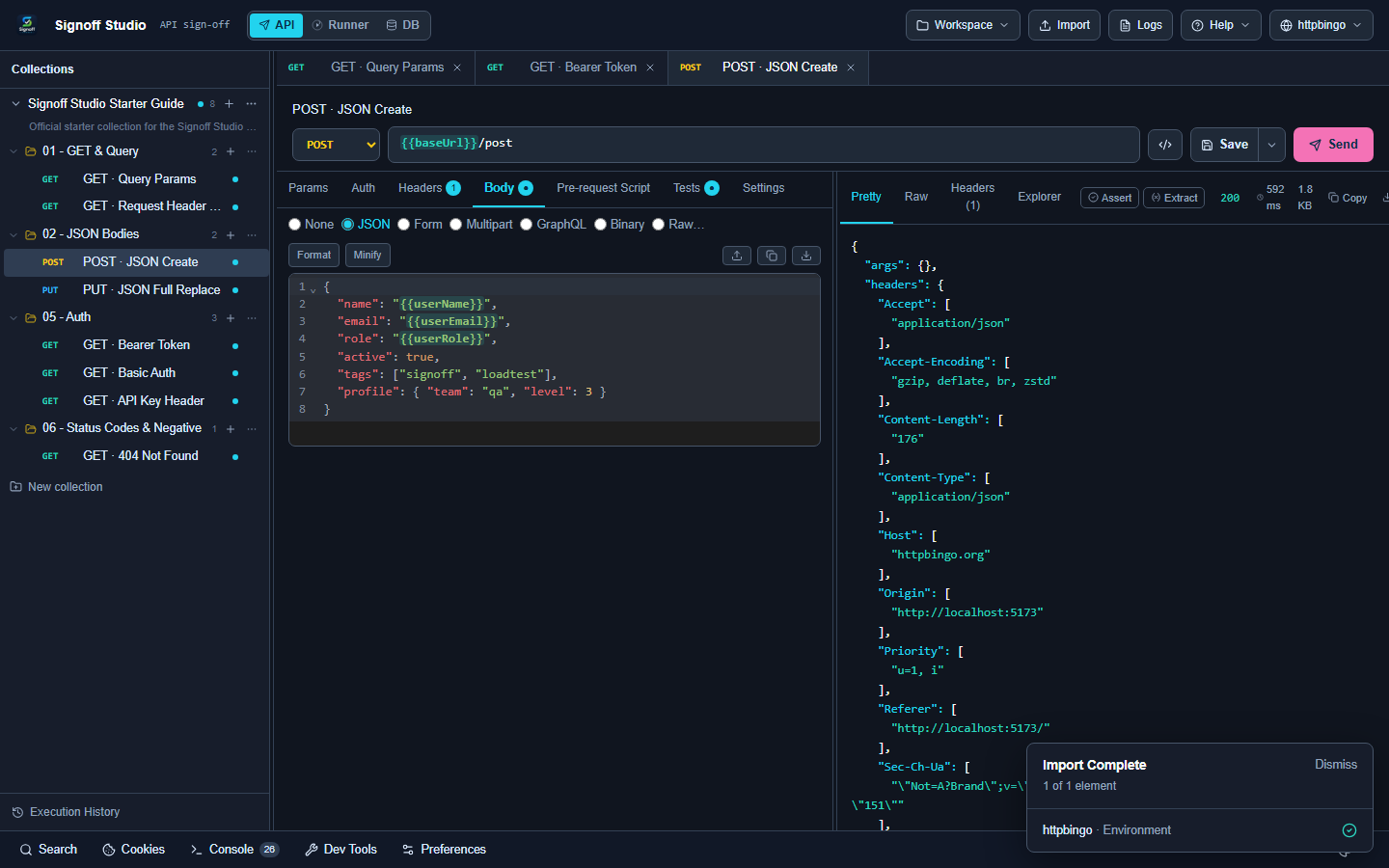
- Open 02 - JSON Bodies → POST · JSON Create.
- Open the Body tab — type should be JSON.
- Click Send.
Success criteria
- Status is 200.
- Response echoes the JSON you sent.
5. Authenticate
Objective: Call an endpoint with Bearer auth from the environment.
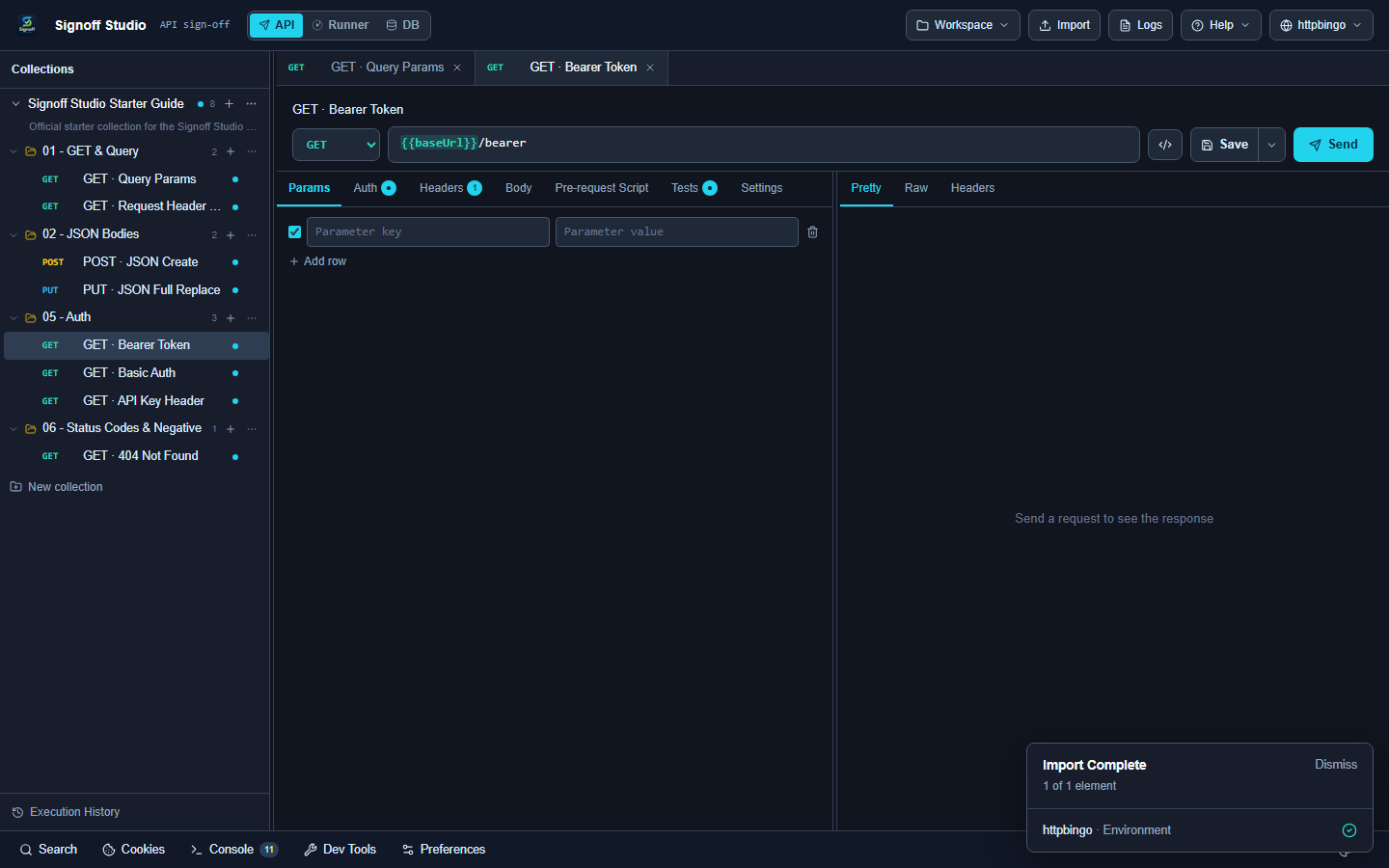
- Open 05 - Auth → GET · Bearer Token.
- Open the Auth tab — type is Bearer token, value
.{{bearerToken}} - Click Send.
Success criteria
- Status is 200.
- Response shows
.authenticated: true
6. Read a test script
Objective: See how Signoff asserts responses with
qa.test- Stay on GET · Bearer Token (or reopen it).
- Open the Tests tab.
- Review the
script that checks status and body.qa.test(...)
Success criteria
- You can identify at least one
that checks statusqa.test
.200
More: Tests & scripts
7. Run the collection
Objective: Execute the Starter Guide in Runner.
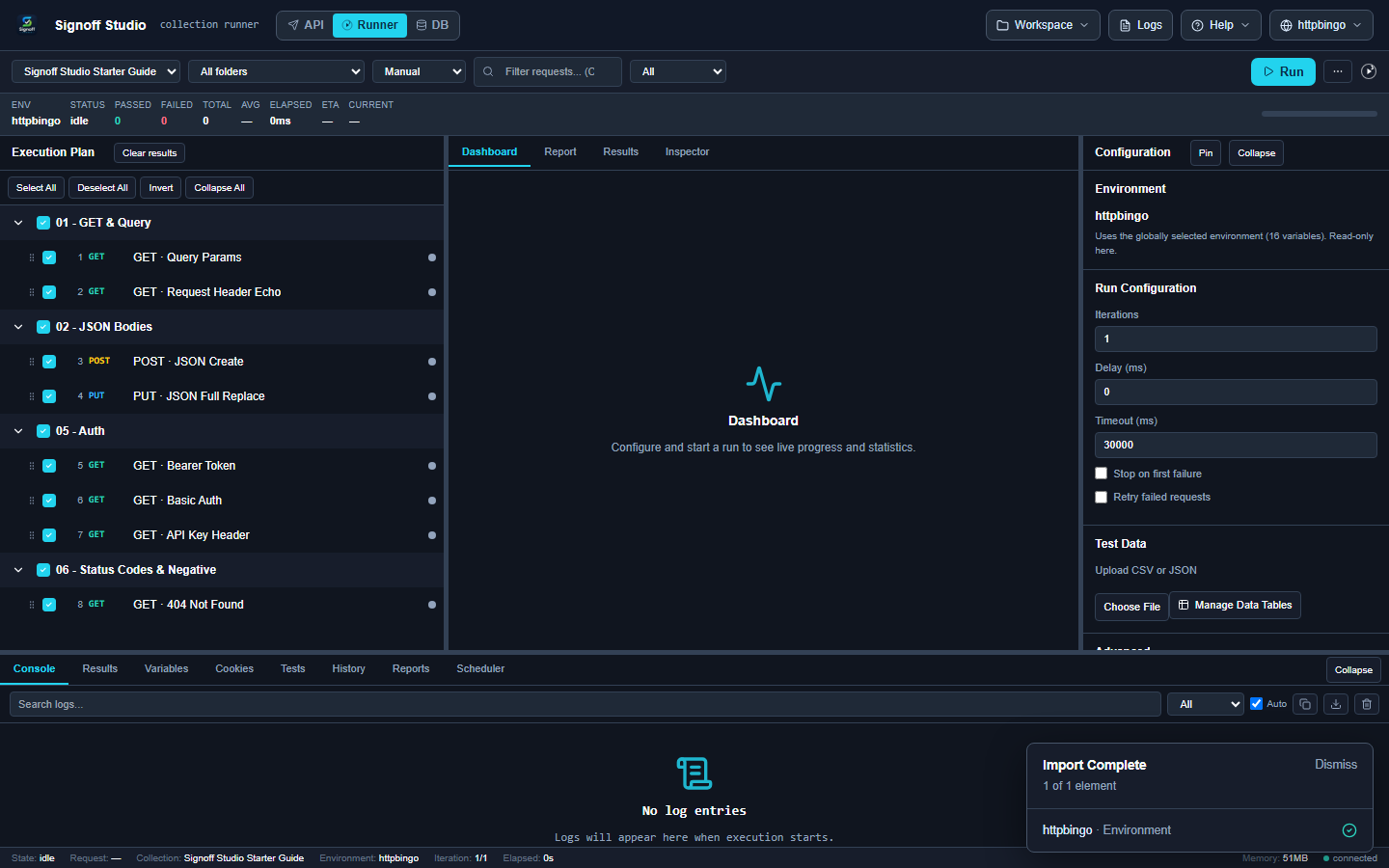
- Switch to Runner.
- Select collection Signoff Studio Starter Guide.
- Leave All folders selected (8 requests).
- Click Run.
Success criteria
- Runner shows the eight requests in the execution plan.
- After Run, passed/failed counts update in the stats bar.
More: Collection Runner
What’s next
| Topic | Guide |
|---|---|
| Variables in depth | Environments |
| Auth types | Authentication |
| Import from Postman/Bruno | Import & export |
| SQL checks | Database |
| Folder workspaces | Workspaces |
Need something else? See the FAQ. Questions: [email protected]. Bugs: [email protected].